
Contents
When you try to view a Twitter post, you often end up facing the uninviting This tweet might include sensitive content warning message. It happens to everyone! Twitter blocks some content from public viewing to protect users who might find it uncomfortable. Can you bypass the content blocks that prevent you from seeing everything?
Twitter users often feel annoyed about missing parts of their feed content. People who want to follow daily news or follow their preferred creators, or browse freely, encounter these interruptions and blocks on their viewing experience. Those who engage with Twitter regularly must understand how to access sensitive content because it proves essential for their experience.
Twitter maintains specific criteria that determine which content will be hidden. User safety is the primary factor for these blocks, even when regular posts accidentally get flagged. Your Twitter account includes an option to adjust settings, which enables automatic viewing of sensitive content.
Anyone interested in enhancing their Twitter presence can use xAutoDM, which manages content creation and interaction with followers through automatic scheduling. You should concentrate on making exceptional content because scheduling and audience maintenance are taken care of by this system.
What Is Considered Sensitive Content on Twitter (X)
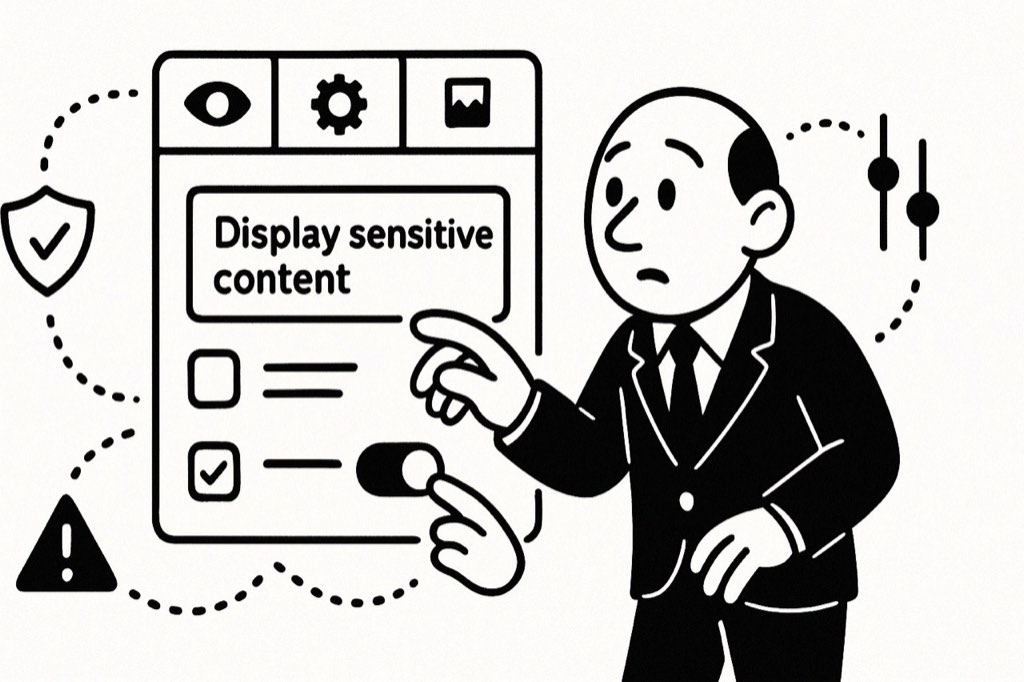
The Twitter (X) platform automatically conceals specific posts that its platform review team determines inappropriate for immediate viewing by all users. The platform uses a feature that highlights specific content as sensitive for the user's view. Twitter has specific guidelines about what it classifies as sensitive content.
Under Twitter (X) policies, Sensitive content refers to posts containing graphic violence and adult material, and other content that could make some users uncomfortable. Users can decide whether to view controversial posts through a warning without the content going against Twitter's protocols.
Some common examples of what might be flagged as sensitive content include:
- Photos or videos showing injuries, blood, or medical procedures
- Content with sexual themes or nudity
- Images of dead bodies or extreme violence
- Content related to self-harm or eating disorders
- Disturbing or shocking images that might upset some viewers
Twitter sometimes also marks content as sensitive if it relates to sensitive events or appears to mock victims of such events.
How to View Sensitive Content on Twitter (X) Mobile App
Twitter's mobile app offers several layers of privacy settings that control what content appears in your feed. Sensitive content filters are designed to protect users, but sometimes they can be overly restrictive. Here's how to adjust these settings on your mobile device:
- Launch the Twitter app - Tap the X icon on your home screen to open the Twitter application.
- Access your profile menu - Look for your profile picture in the top-left corner of the screen. Tap on it to reveal a sliding sidebar menu with various options.
- Navigate to settings - Scroll down through this sidebar until you see Settings & Support (usually accompanied by a gear icon). Tap on this option to expand additional choices.
- Open privacy settings - From the dropdown menu that appears, select Settings and privacy to access all account configuration options.
- Locate privacy section - Within the Settings menu, find and tap on Privacy and safety. This section contains all content filtering options.
- Access content visibility settings - Scroll until you find Content you see and tap on it. This submenu controls what types of posts appear in your feed.
- Enable sensitive content viewing - Look for the toggle switch labeled Display media that may contain sensitive content. When this switch is gray, sensitive content is hidden; when blue, it will be visible.
- Confirm your choice - After toggling the switch to the ON position (blue), Twitter will display a brief confirmation message. No additional confirmation is required.
How to View Sensitive Content on Twitter (X) Desktop
The desktop version of Twitter provides the most comprehensive access to content settings. The larger screen allows for easier navigation and more obvious setting locations:
- Open your preferred browser (Chrome, Firefox, Safari, Edge, etc.) and navigate to twitter.com or X and ensure you're logged into your account.
- Look at the left sidebar of the Twitter interface for the More option, typically represented by three dots or the word More with an ellipsis. This is typically located near the bottom of the main navigation options.
- Click on More to expand additional options, then look for Settings and Support in this expanded menu. Click it to reveal a submenu.
- Select Settings and privacy from the submenu. This will take you to a dedicated settings page with multiple categories listed in a left-side navigation bar.
How Twitter (X) Identifies and Flags Sensitive Content

Twitter (X) employs a dual system to detect sensitive content on its platform.
The content creator performing the operation has the capability to tag their own posts as sensitive through user reporting options. Users who make frequent mature tweets have the capability to activate the Mark media you Tweet as having material that may be sensitive setting from their account preferences.
Twitter employs two methods to mark content sensitive through its automated system and human support personnel. Platform processing follows two main steps for flagging sensitive content. The first comes after users report media through the platform, then automated systems take over if the review process finds concerning content.
Twitter users need to press a button to view flagged sensitive content, which appears with the This Tweet might include sensitive content alert. The Twitter platform uses the possibly_sensitive value within its codebase to indicate sensitive content, which it marks as true.
Viewing Sensitive Content on X in 2026 (Updated Steps)
X has rebranded and reshuffled its menus since the Twitter days, but the core toggle sits in the same place. Here is the current 2026 path on desktop, which is the most reliable way to enable it:
- Open x.com in your browser and sign in.
- Click More in the left sidebar, then Settings and privacy.
- Go to Privacy and safety.
- Select Content you see.
- Tick Display media that may contain sensitive content.
On the mobile app the same option lives under Settings and privacy > Privacy and safety > Content you see, though iOS users still often need to flip the toggle from a browser first, after which it syncs back to the app. And if you manage an X account for outreach, see how targeted scraping and DMs fit into your workflow.
Conclusion
Most users find it difficult to handle sensitive Twitter/X content because of the platform-specific restrictions, which vary between devices. Users with Android devices can access setting adjustments via their app interface, yet iOS users need to browse Twitter using their browser to modify these options.
The definition of politically sensitive content remains hazy to numerous users despite Twitter providing warning pop-ups as user protection against offensive material.
Frequently Asked Questions
Why can't I adjust sensitive content settings on my iPhone Twitter app?
Unlike Android devices, iOS has stricter app guidelines that prevent the Twitter/X app from including direct toggles for sensitive content. Instead, iPhone and iPad users must use a web browser (Chrome, Safari, etc.) to visit twitter.com, log in, access Settings and Privacy through their profile photo, navigate to Privacy and Safety → Content You See, and enable Display media that may contain sensitive content. These changes will then apply to your iOS app experience.
I've changed my settings, but still see sensitive content warnings. Why?
Even after adjusting your settings, you may still encounter warnings for several reasons: First, Twitter may still restrict content based on your account's age information. Second, some content is flagged by creators themselves using the Mark media you post as containing material that may be sensitive option. Additionally, some warnings may appear because certain networks or internet providers independently block sensitive content, or because settings haven't properly synchronized across all your devices.
How do I mark my posts as containing sensitive content?
If you post content that might be considered sensitive, you should appropriately label it to help other users. Go to your Twitter/X settings, select Privacy and safety, then Your posts, and toggle on Mark media you post as containing material that may be sensitive. This helps maintain community standards by providing appropriate warnings to other users who may not wish to view potentially disturbing material.
Where is the sensitive content setting on X in 2026?
On desktop, go to More then Settings and privacy then Privacy and safety then Content you see, and tick Display media that may contain sensitive content. The mobile app uses the same path under Content you see, and iOS users may need to enable it from a browser first so it syncs to the app.
Can I view sensitive content on X without an account?
No. Adjusting the sensitive media setting requires a logged in account. Without signing in, X keeps the warnings in place and hides flagged media by default, so you will need to log in and change the setting to see it.





Your next customer is already on X.
Find the people talking about what you sell, message them on a safe schedule, and turn the replies into booked calls.
- Scrape leads from any tweet, keyword or X List
- Auto-DM new followers and people who engage
- Follow-ups that stop the moment someone replies
- Safe daily limits and warm-up, built in
- Every reply tracked through to a booked call
Plans from $29/mo · cancel anytime.
Related posts
Ready to automate your Twitter DMs?
Start sending personalized DM campaigns to your target audience today. Get higher response rates and more leads than cold emails.