
![Make Your X Account Private[Quick Guide]](/images/blog/chatgpt-image-may-9-2025-11_31_37-am.jpg)
Contents
Wanting to make your Twitter account private? It's easier than you think. A lot of users want to ‘make Twitter private’ in order to regulate who can see their posts and this process only takes a few clicks.
To have a private Twitter account means that only approved members can see what you put out. Your tweets are secured, you can choose your followers.
Feeling like keeping your X account private now? This guide will assist you in modifying your privacy settings and protect your content from unwelcome visitors.
Why People make their Twitter account private?
People usually set their Twitter accounts to private to get rid of unnecessary replies and messages. Some users, including teachers and professionals, opt for privacy in order not to mix their private life with work relationships.
A private account allows users to fully control the followers seeing their content. This increased privacy enables them to post personal updates without caring that its possible for them to be seen by strangers and by extension they also avoid unwanted attention and trolls as a result. It is quite effective at helping users stay away from negative interactions in the platform.
Step-by-Step Guide to Make Twitter Private
Here's a detailed step-by-step guide to make your Twitter account private. Follow these simple instructions to protect your tweets and control who sees your content.
For Desktop Users:
- Open your web browser and visit Twitter.com. Sign in to your account if you haven't already.
- Look for your profile picture in the left sidebar. Click on More to reveal additional options.
- Select Settings and privacy from the expanded menu - it's usually marked with a gear icon.
- In the left menu, click on Privacy and safety, then select Audience and tagging.
- Find the Protect your Tweets option at the top of the page. Click the checkbox or toggle button.
- Twitter will ask you to confirm this change. Click Protect to continue.
- You'll need to enter your password to save these changes.
For iOS Users (iPhone/iPad):
- Launch your Twitter app and look for your profile picture in the top-left corner.
- Tap on Settings & Support - it appears in a drop-down menu.
- Choose Settings and privacy from the available options.
- Navigate to Privacy and safety in the menu.
- Select Audience and tagging near the top of the screen.
- Find Protect your posts and tap the toggle switch to turn it on.
- Confirm your choice when prompted.
For Android Users:
- Open the Twitter app on your Android device and tap your profile icon.
- Look for the menu icon (three horizontal lines) and tap it.
- Select Settings and privacy from the menu options.
- Tap Privacy and safety in the settings menu.
- Choose Audience and tagging from the available options.
- Find Protect your Tweets and tap the toggle switch.
- Confirm your decision when Twitter asks you to verify.
Remember: You can always switch back to a public account by following the same steps and turning off the protection setting.
Privacy Tips & Recommendations
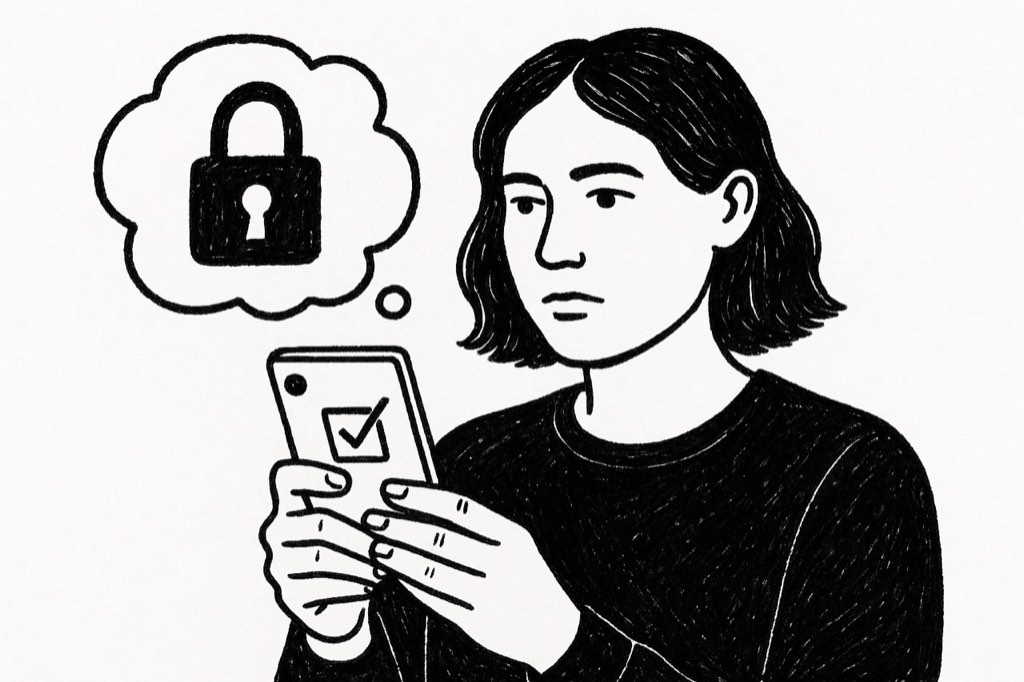
Essential Privacy Tips To Secure Your Private Twitter Account - Your Complete Guide To Maintaining Privacy While Enjoying The Platform.
1. Regular Privacy Checkups: Review your account settings monthly, including current followers, blocked accounts, and connected apps. This proactive monitoring helps maintain optimal security for your private Twitter account.
2. Strong Password Protection: Create a unique password using a combination of uppercase, lowercase, numbers and special characters. Enable two-factor authentication for an additional layer of security.
3. Manage Follow Requests: Review each new follower request carefully before accepting. Check profile details and posting history to verify legitimacy. Remove suspicious or inactive followers regularly.
4. Content Sharing Controls: Never share sensitive personal information, even with a private account. Disable location tracking on posts and avoid sharing identifiable details about your daily routine.
5. Direct Message Security: Adjust DM settings to only accept messages from followers. Regularly review and update your messaging privacy settings. Never click suspicious links sent via DMs.
These security measures work together to create comprehensive protection for your private Twitter account. Regular maintenance of these settings helps ensure continued account security.
Conclusion
Making your Twitter/X account private is a simple yet effective way to control your online presence. Whether you choose to make Twitter private or adjust your privacy settings, these steps ensure your content stays protected. Remember, you can always switch back to a public profile if needed, giving you full control over your social media experience.
If You get tired of sending Twitter DMs manually, Try Our tool xAutoDM for free Today!
FAQs
What happens when you make your X account private?
When you make your account private, only approved followers can see your tweets, retweet your posts, or interact with your content. New followers must request permission to follow you.
Can people still find me if I make Twitter private?
Yes, people can still find your profile and see your username, bio, and profile picture. However, they won't be able to see your tweets unless you approve their follow request.
How do I change privacy settings on Twitter on mobile?
Open the Twitter app, tap your profile icon, go to Settings and privacy, select Privacy and safety, then Audience and tagging, and toggle Protect your posts.





Your next customer is already on X.
Find the people talking about what you sell, message them on a safe schedule, and turn the replies into booked calls.
- Scrape leads from any tweet, keyword or X List
- Auto-DM new followers and people who engage
- Follow-ups that stop the moment someone replies
- Safe daily limits and warm-up, built in
- Every reply tracked through to a booked call
Free Test plan · no credit card.
Related posts
Ready to automate your Twitter DMs?
Start sending personalized DM campaigns to your target audience today. Get higher response rates and more leads than cold emails.